
Introducing Headscratch - a funky todo app
Headscratch is a todo app that I’ve been quietly working on for years. I’ve tried all the other ones and none of them really scratched the itch. It took me a while to figure out what it is I actually wanted, and Headscratch is the culmination of all that effort. To start with, it doesn’t take itself too seriously. This probably isn’t something you’d use to get serious business work done. It’s designed to be a bit more fun, whilst also helping you get through your list without the burden of maintaining it. It works offline and privately, and I can never access your data (euw keep your data away from me). It’s almost entirely free and has no subscriptions.
Let’s look at some of the more interesting features, but Headscratch is full of little details.
1. The scratch
First up, you’ll probably notice a real lack of checkboxes when you add a task. To mark something as done, you actually scratch it off (hence the name). You draw whatever you want, and it even saves that drawing too.
2. Everything expires
It may seem weird when you first start using Headscratch that every task you create has an expiry date (i.e. a due date). In most other apps, a task can have a due date, but it doesn’t have to. Headscratch is different because I’ve personally found that if a task doesn’t have one, then I just never get to it. Maybe I’ll get to it tomorrow, or the next week, or the next week… Headscratch requires an expiry date precisely so that it forces your todo list to move along. Once a task expires, just like the food in your fridge, it gets moved to the trash (or the compost bin).
3. Folders
Organisation is simple in Headscratch, a task is either in a folder or it’s not. Folders give tasks their own color and icon, but also have special features like presets. Importantly, though, Headscratch is designed to make adding tasks as fast as possible. So as you type the task content, it will match words you type with words commonly used in your folders and automatically assign the task to that folder when you add it. This makes it super fast. E.g. I can type “check emails” and it automatically suggests my work folder, and it will expire the task the next weekday at 9am.
4. Traffic lights
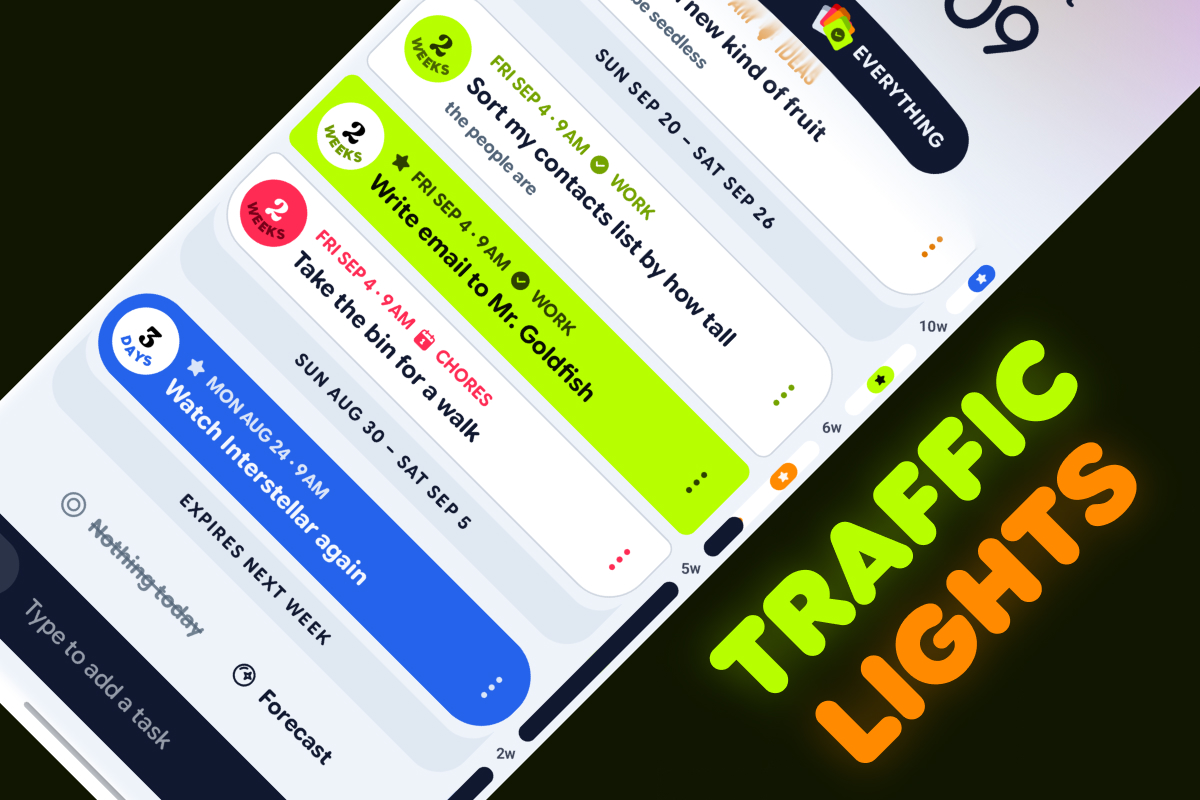
Traffic lights is my nickname for the scrollbar. The scrollbar can be used to quickly jump to specific sections, but it’s also packed full of useful info. Your tasks are broken up into weeks in the list and so is the scrollbar. The scrollbar also highlights any important tasks and a subtle icon for any tasks in certain folders. So you can get a full glance at your upcoming tasks all in 1 view, and then quickly jump to whatever section you want to see in more detail.
5. Forecast
Forecast is a somewhat random selection of your tasks that you can see on the widget, in the app or delivered as a notification at different times of the day (e.g. morning, afternoon, evening). It’s there to solve a few problems:
- It gives you a heads up before your task expires so you’re not caught off guard when it happens
- If you’re not sure what to do next, it gives you a few options
- It helps with forgetting things you wrote down by surfacing them now and then. E.g. maybe you had an idea and you want to get to it in the next 6 months. Then it can give you a little nudge now and then to remind you about it, rather than it being forgotten about for 6 months.
6. Walkie talkie
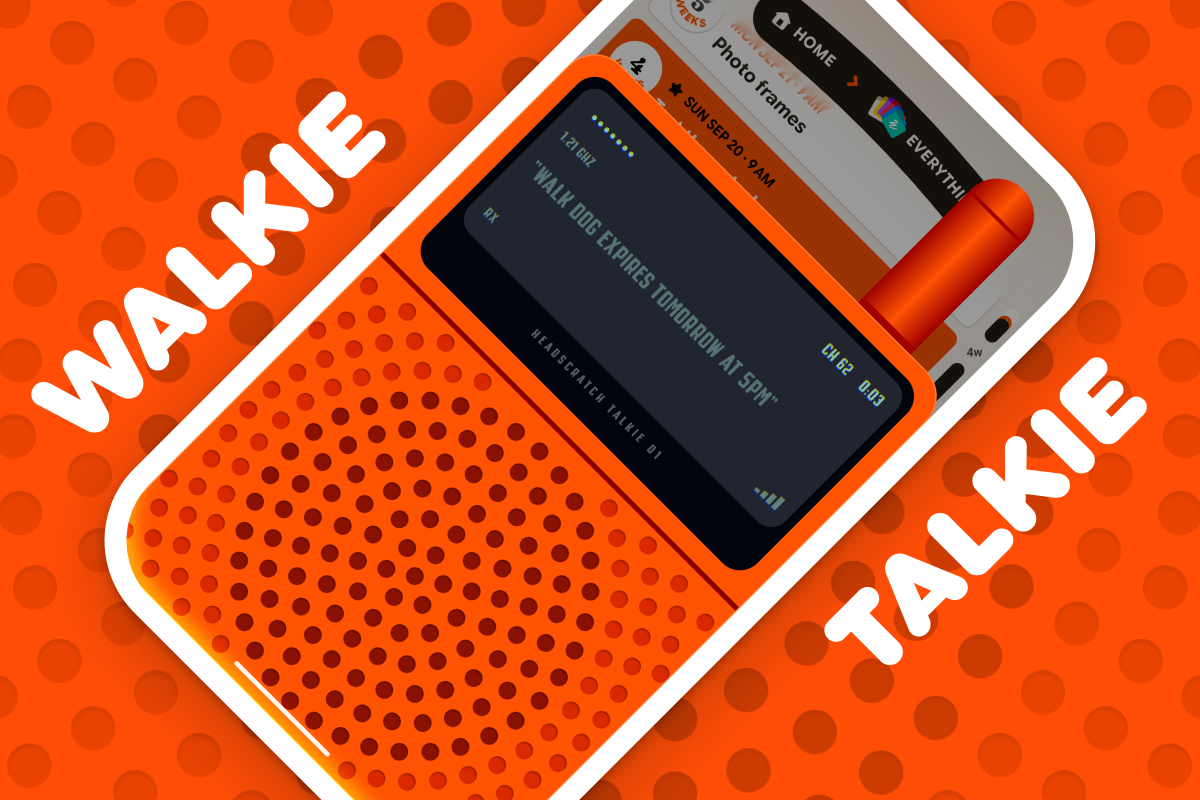
Walkie talkie is probably one of the silliest things in the app. Essentially it’s just voice to text, except it’s disguised as a walkie talkie. You can say “walk dog at 6pm” and it automatically creates your task for you. And the best bit is that you can open it by holding the volume buttons, so it kind of feels like a walkie talkie too. It also gave me the chance to hide a Back to the Future easter egg in there, which I haven’t done since 2014 in Weather Timeline.
7. Themes
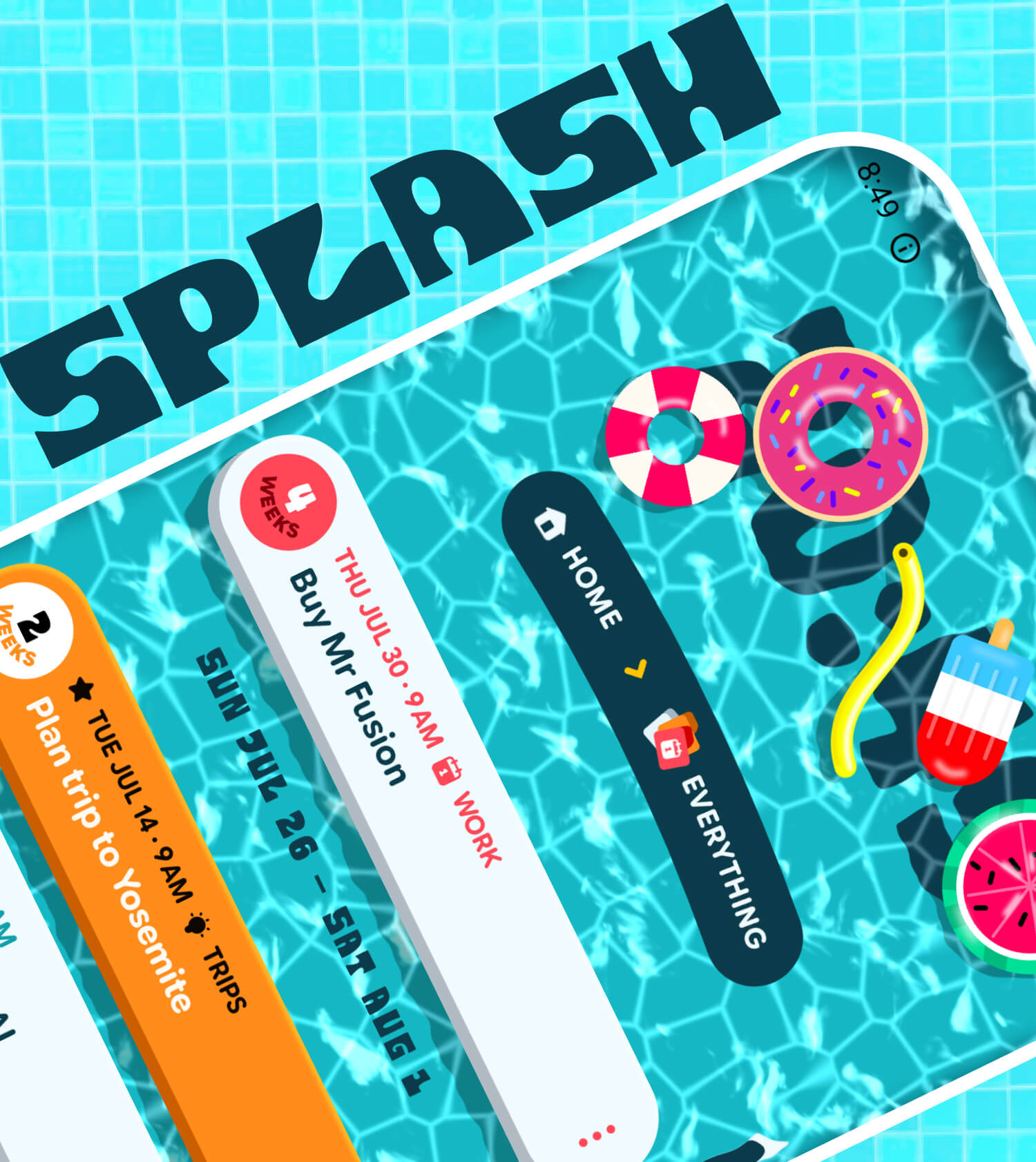
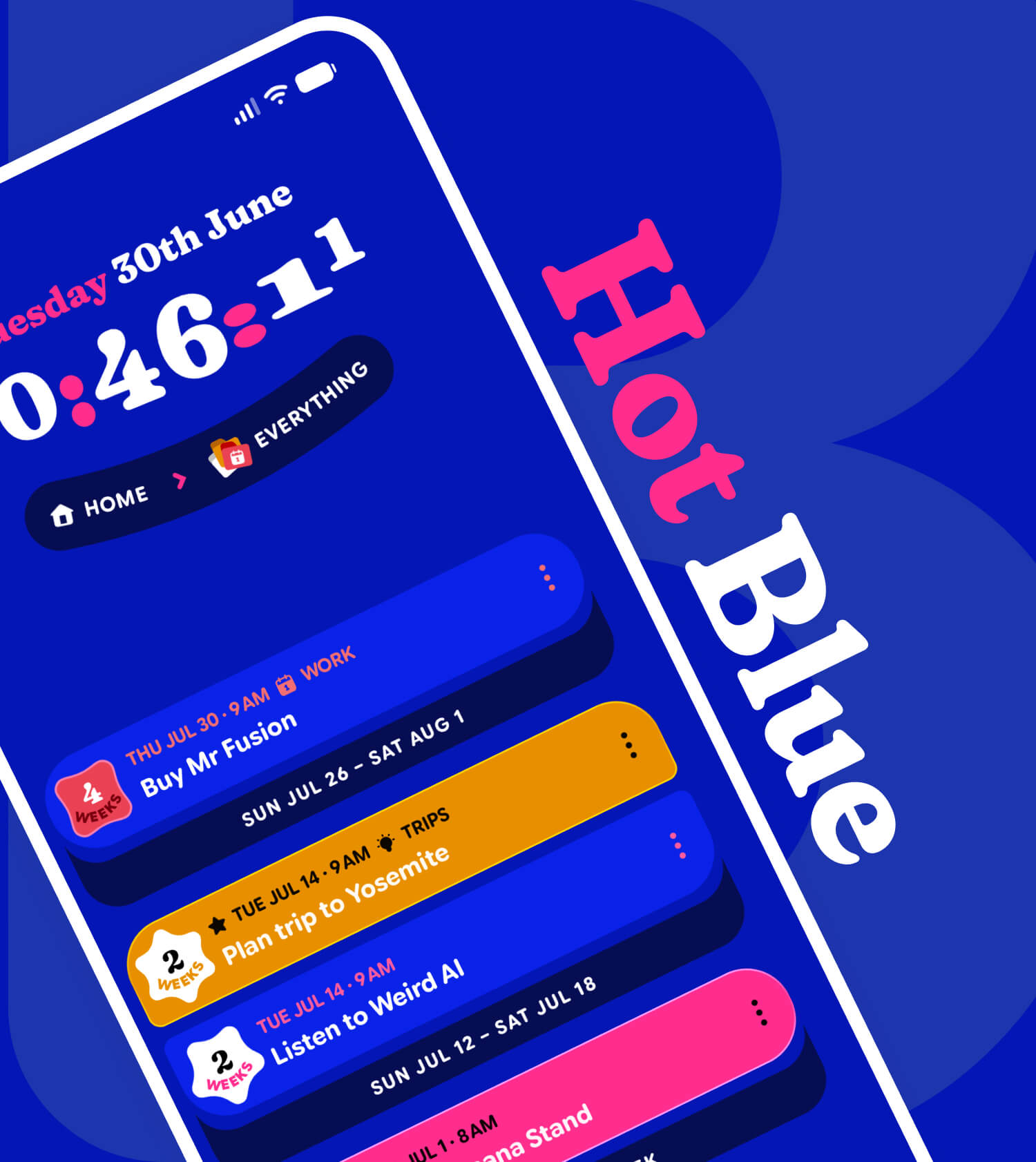
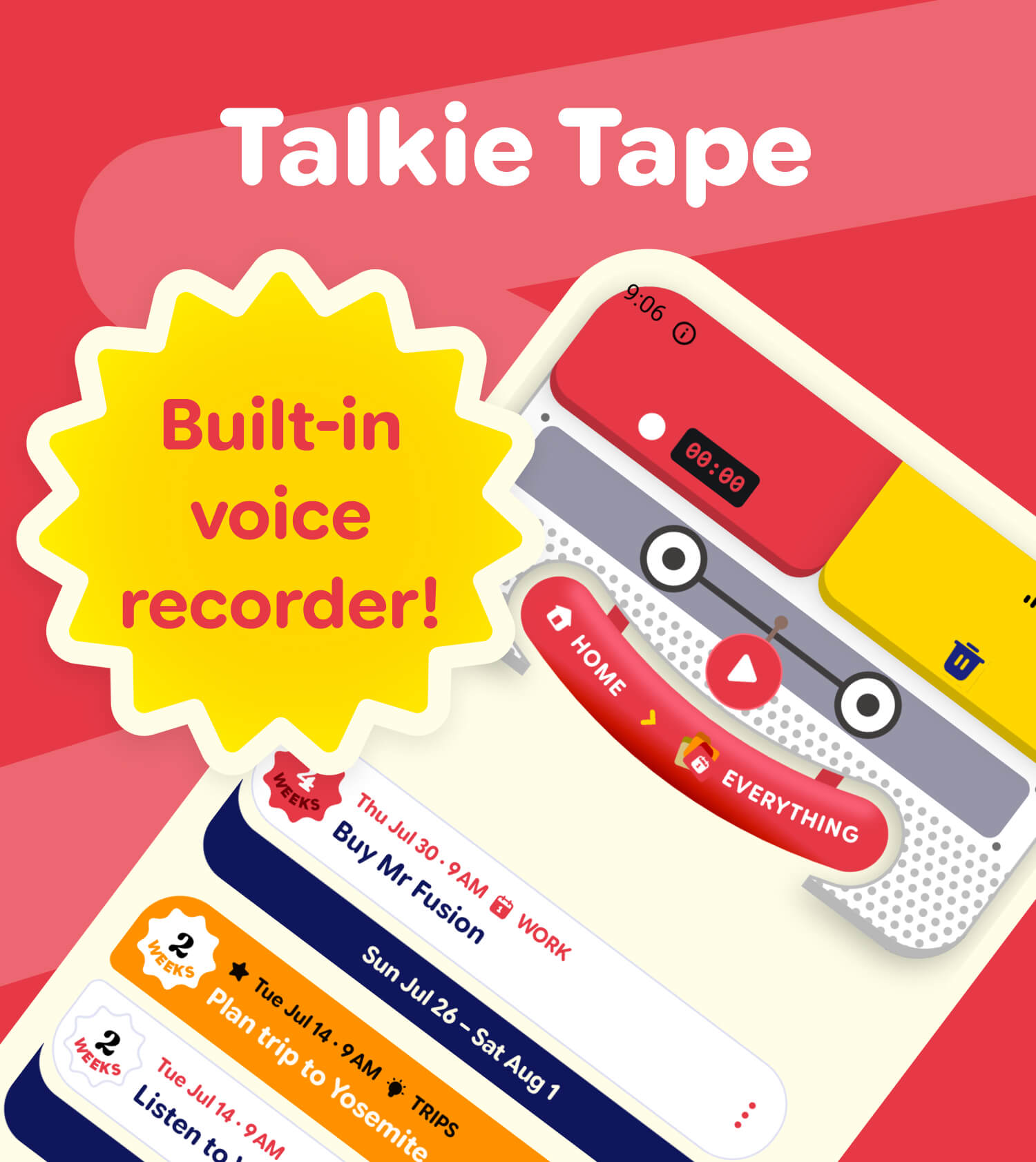
I’ll be honest, I might have gone a little too far with themes. But damn it, they’re one of my favourite bits and I want to make more. There’s the normal ones like green, purple, blue and then there’s the fun ones:
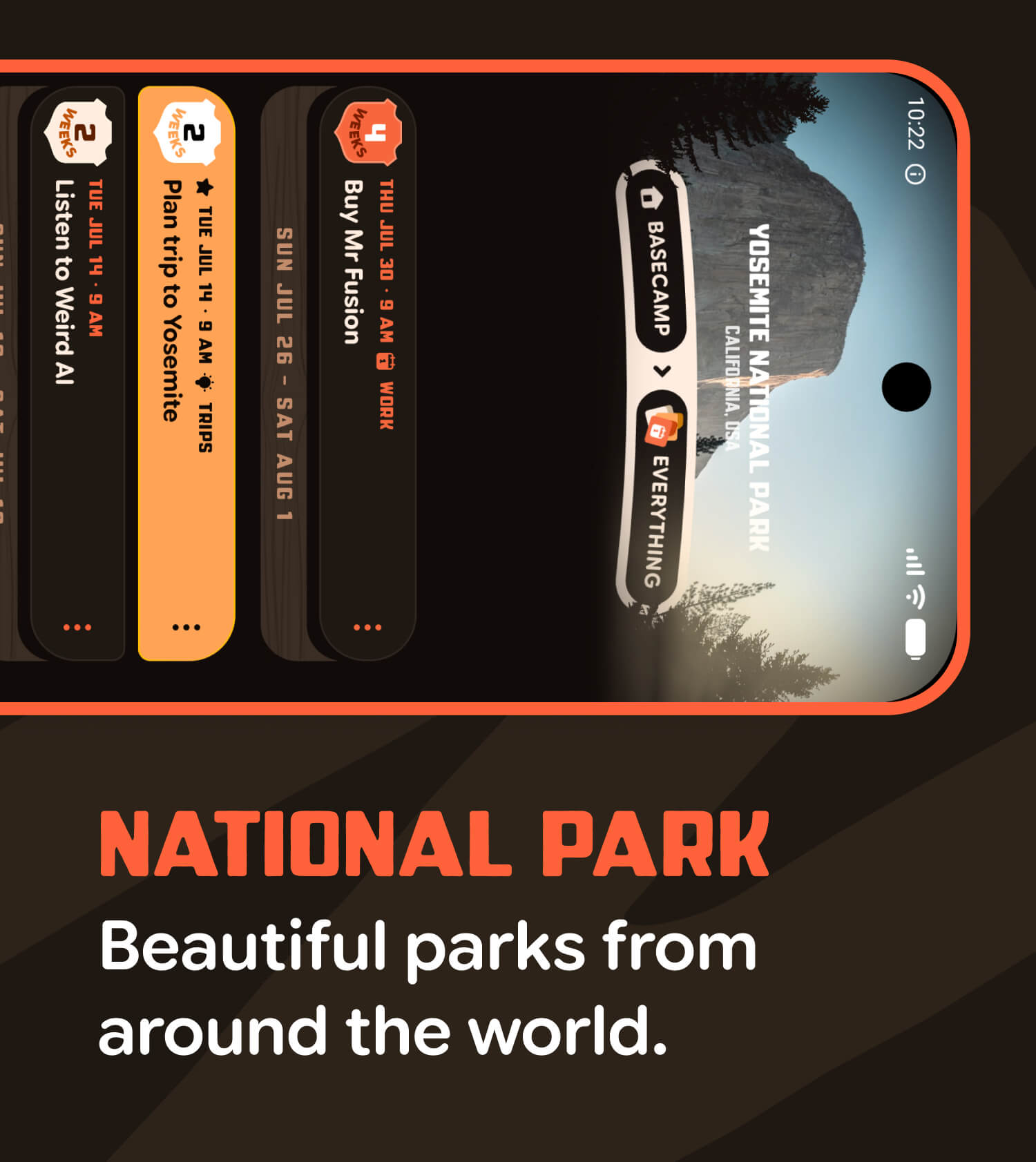
- National Parks - Inspired by the beautiful national parks across the world
- Splash - A little swimming pool
- Hot Blue - A very blue theme
- Talkie Tape - If Fisher Price had made a todo app, with a built-in voice recorder
8. Notifications
As the developer of a notification manager you’d expect that the notifications in Headscratch are pretty good. There are notifications when tasks expire, your forecast notifications, reminders and alarms too. My favourite bit is “sticky notifications”, which is turned on by default and is key for you to not accidentally missing tasks. Not only can you not accidentally swipe the sticky notifications away, but they also appear again when you reboot your phone. They just stick around until you intentionally want to dismiss them. It might just be a me-thing, but often when I used Google Tasks and my battery was very low I would re-schedule the task for an hour in the future so that I would get a notification again when I had had time to plug my phone in. Maybe you don’t have that problem, but with sticky notifications in Headscratch it just works on its own.
And some other stuff too
- Snoozing - Some tasks you can’t do yet, so there’s no point in seeing them. For this you can snooze tasks, e.g., snooze until the day before or the week before. I can’t take the bins out until it’s bin day so I can just snooze it until then.
- Gestures in menus - Almost all the menus in Headscratch can be opened by long pressing on them. You can then drag your finger to what option you want to select and then let go to trigger it. This makes it super fast to e.g. change what page you’re on, or change folders etc…